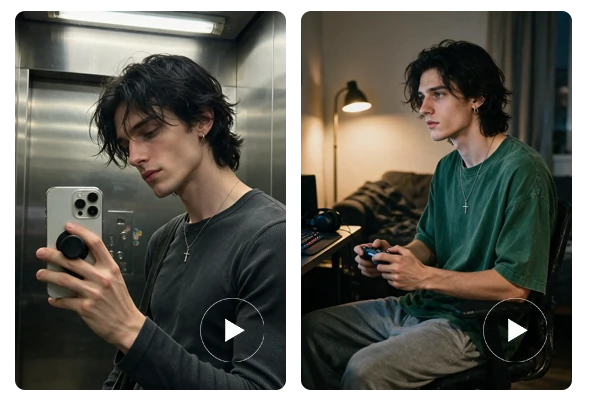
FLUX 3 Image Klein AI Image Generator
Create high-quality AI images and edit existing photos with FLUX 3 Image Klein on SeaArt AI. Generate visuals from text, combine reference images, make targeted edits, and explore new styles - all in one creative workspace.
Why Use FLUX 3 Image Klein on SeaArt AI?
Create detailed images with a compact 5.6B-parameter model, native 4K output, and checkpoint options for different workflows.

Native 4K Image Generation
Generate images at native 4K resolution for detailed product photography, posters, and concept art, with room for fine visual details in high-resolution compositions.

Compact 5.6B Model
With 5.6 billion parameters, FLUX 3 Image Klein offers a more compact model architecture for image generation and editing workflows on supported hardware.

Base and Distilled Checkpoints
Choose Base for research, fine-tuning, and further model development, or Distilled for faster generation and rapid creative iterations.

Efficient Local Workflows
On compatible consumer GPUs, quantization and the Distilled checkpoint can help reduce hardware demands and speed up generation, depending on the setup and configuration.
How to Use FLUX 3 Image Klein in 3 Steps
1. Start with Your Idea
Enter your prompt in the FLUX 3 Image Klein generator to describe the image you want to create, or start with an existing image if you're looking to make edits.
2. Add Prompts and References
Refine your description with details about the subject, style, lighting, and composition. Upload reference images when needed to guide the result.
3. Generate and Refine
Generate your image, review the result, and adjust your prompt or references to explore variations and improve the details.
What You Can Create with FLUX 3 Image Klein
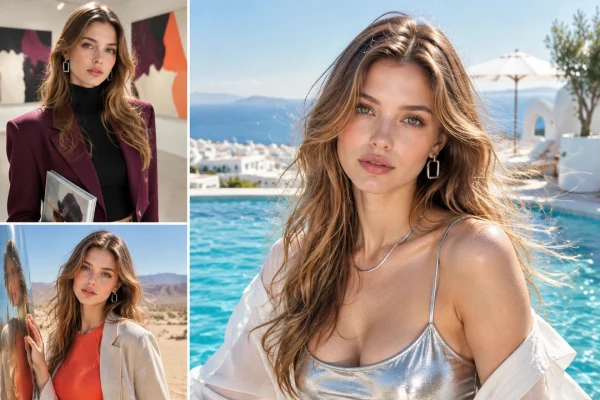
Keep Subjects Consistent Across Edits
Upload multiple reference images of a person, product, or character to guide your edits. FLUX 3 Image Klein helps preserve recognizable features while you change the background, outfit, camera angle, or scene. Create consistent product photography from different views, develop character concepts across multiple scenes, or explore visual variations without describing the subject from scratch each time.
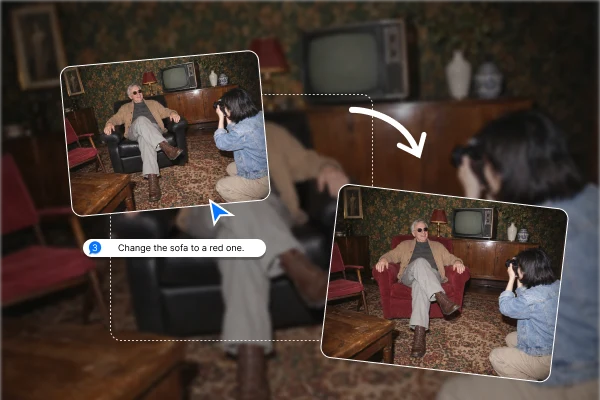
Edit Specific Image Regions
Use a bounding box to mark the area you want to change, then describe the desired result. Replace an object on a desk, adjust a jacket's color, or revise part of a poster while keeping the surrounding composition as consistent as possible. This approach makes targeted image editing useful for product mockups, localized design revisions, and detailed image corrections.
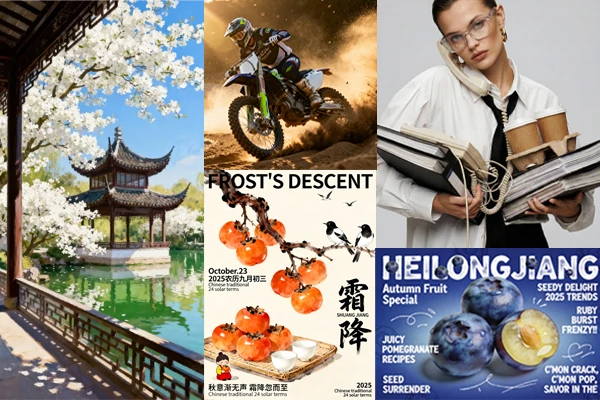
Create Images with Text
Generate posters, product packaging, thumbnails, and other text-based graphics with words integrated into the visual design. Describe the exact wording, text placement, typography, and overall layout, then refine specific areas when the message or design needs to change. For promotional graphics and product labels, review spelling, small lettering, and layout details before using the final image.

Match a Reference Style
Use a reference image to guide the colors, lighting, textures, and overall visual style of a new creation. For example, apply the soft color palette of an illustration to a portrait or use a moodboard to guide the lighting in a product shot. By describing the subject separately, you can explore different compositions while keeping the intended art direction consistent - useful for concept art, brand visuals, and moodboard development.
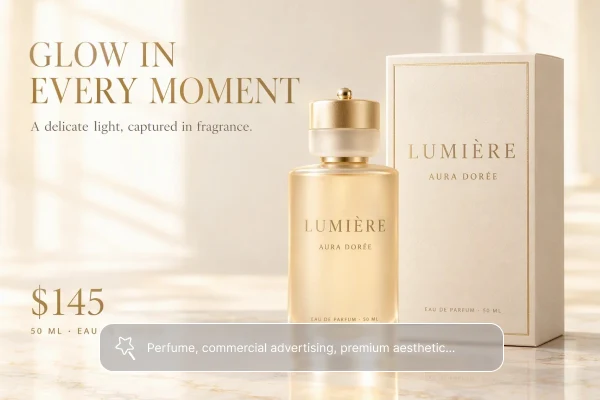
Explore More with Prompt Refinement
Start with a simple idea, then add details about the subject, composition, lighting, and visual style to guide the result. Clear, specific prompts help you communicate the changes you want, whether you're refining a product image, exploring a character design, or creating a new visual concept. Keep important details and exact text explicit when they need to appear in the generated image.
Frequently Asked Questions

What is FLUX 3 Image Klein?

How can I get better results with FLUX 3 Image Klein?
Be specific about your subject, composition, lighting, colors, and visual style. Instead of describing everything vaguely, explain what you want to see and which details matter most. If the result is close but not quite right, adjust one or two details at a time rather than rewriting the entire prompt.
Can I edit an existing image with FLUX 3 Image Klein?
Yes. When image input is available in your SeaArt AI workflow, upload the image and describe the changes you want to make. For example, you can request a different background, adjust clothing colors, or change selected visual details. Clearly state what should change and what should remain the same.
How do I keep a person or product consistent across edits?
Use clear reference images that show the features you want to preserve, such as a person's face, a character's hairstyle, or a product's shape and details. Explain which elements should stay the same and which should change. Review each result before continuing, as consistency can vary between generations.
Can FLUX 3 Image Klein generate images with text?
It can help create text-based visuals such as posters, product graphics, and thumbnails. Include the exact wording in your prompt and describe where the text should appear and how it should look. Always check spelling, letter shapes, and layout in the generated image, especially when the text needs to be accurate.
What should I do if the generated image doesn't match my prompt?
Identify the biggest issue first, such as the subject, composition, lighting, or a specific detail. Make your instructions more explicit and simplify conflicting requests. If you're editing an existing image, use a clear reference when available and describe the intended change directly.