50M
+Creator

Create, edit, and refine images faster with Grok Imagine. Generate detailed visuals, make precise changes with prompts, and keep full creative control from idea to final result.


Fast Image Creation
Get results quickly, then refine instead of waiting around for every new idea to finish rendering.

Detailed Still Images
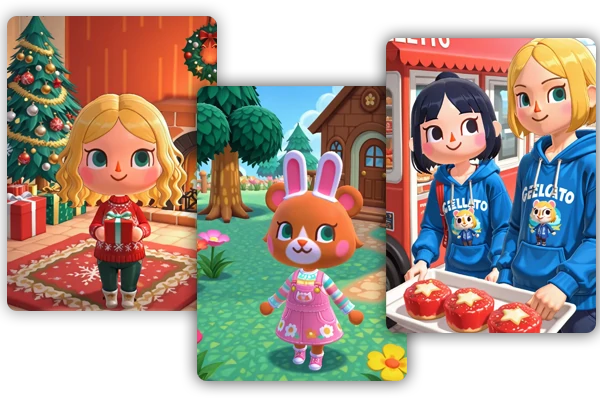
Make sharp visuals for portraits, fantasy scenes, product concepts, and design mockups without a long setup.



Prompt-Friendly Editing
Edit with plain language. You can describe the change instead of learning complex design software first.

Better Creative Control
Use prompts and reference images to guide style, composition, and subject consistency instead of relying on random image generation.
Quickly compare, adjust, and perfect images with multiple outputs, flexible formats, and high-quality results in one workflow.
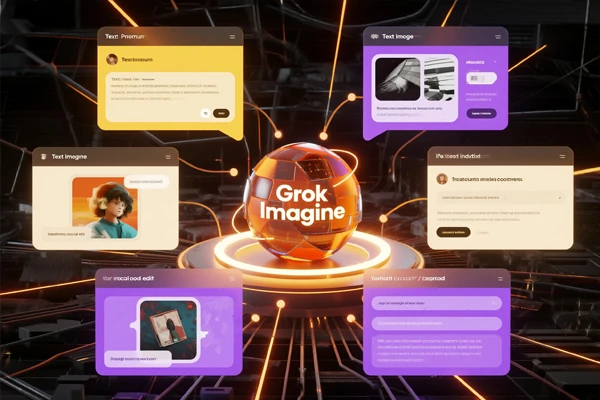
Try text to image or refine existing images without switching tools. Start with a prompt for new ideas, or upload a reference to restyle, repair, extend, or improve details. This unified workflow keeps style consistent and speeds up concept art, marketing graphics, product visuals, thumbnails, and other creative projects where both control and efficiency matter.
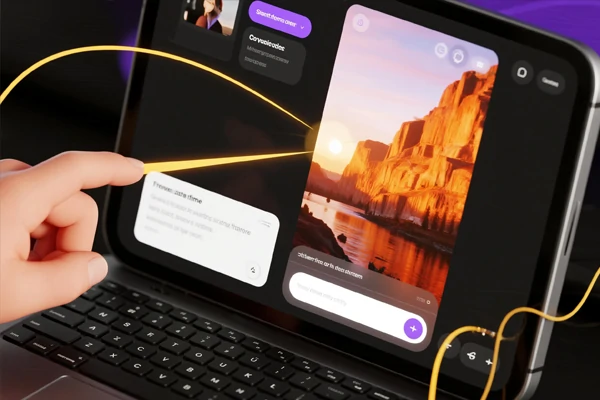
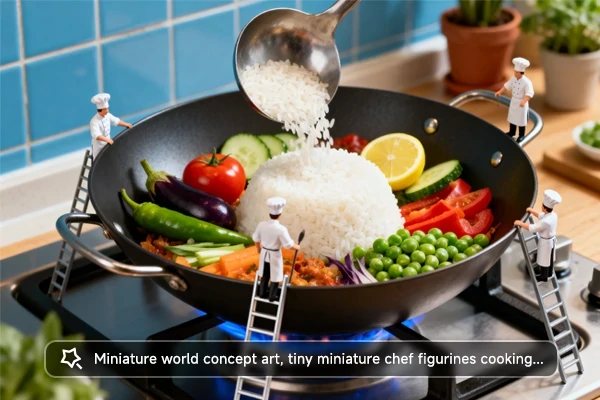
Start from a blank canvas using SeaArt AI's Grok Imagine image generator. Describe what you want in natural language, add mood, style, and composition, and the model builds the scene automatically. This makes it easy to explore new ideas, test different visual directions, and quickly generate polished still images without complex setup or manual drawing.
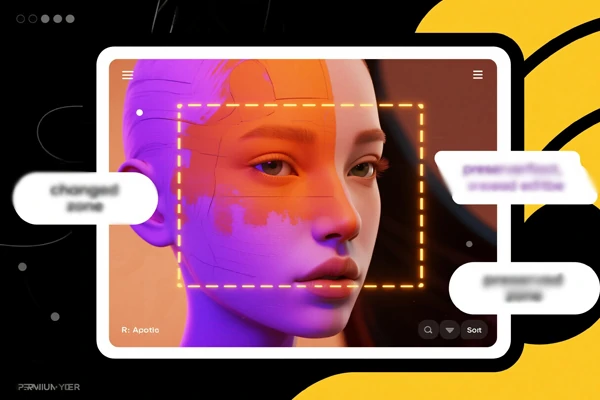
Refine existing visuals without starting over. Upload an image and describe the changes you want in natural language, such as adjusting style, replacing backgrounds, extending the frame, or cleaning up details. The model keeps the main subject while updating selected parts, making it easier to improve results step by step with better control and less effort.
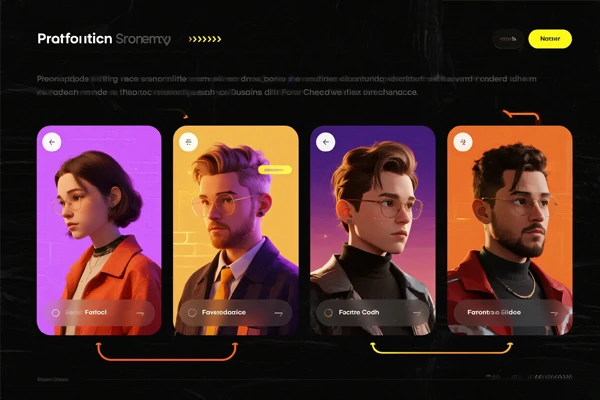
Generate multiple image variations in one run to compare composition, lighting, and details side by side, accelerating creative decisions. Test different aspect ratios, including square, banner, and vertical, from the beginning, then refine only the strongest version instead of rewriting entire prompts. Finish with a 4K image upscaler for sharp, high-clarity results that are fast, flexible, and practical.
Step 1. Enter Prompt or Upload Image
Enter the prompt for the image you want to generate, or upload an image you want to edit and type the instructions.
Step 2. Adjust Settings and Confirm
Adjust the details and confirm everything is correct, then click the button to start generating or editing the image.
Step 3. Generate and Download Result
Wait for the result. You can refine the prompt for better results, or download the image to use and share.
You can also try the following top image and video creation models on SeaArt AI.

1.Is Grok Imagine free?

2.Can anyone see my Grok imagine images?
No. SeaArt AI uses strict privacy and encryption policies to protect user creations. If you select Private Creation while generating, the results will be visible only to you and will not be seen by anyone else.