50M
+Creator

Known for template-led editing, background removal, and upscaling, Remaker AI rebuilds subjects in photos and video from a reference portrait while preserving the original scene and motion on SeaArt AI.

More Models, One Workspace
Choose from a broad model library for image, video, and audio creation in one workspace.

Fast Draft Review
Generate quick drafts so you can compare creative directions and refine the next version sooner.

High-Resolution Output
Create 1080p video clips and image outputs up to 4K for polished visual projects.

Privacy Protection
Work with personal source material in a workspace designed with respect for user privacy.
In SeaArt AI, choose an image, gif, or video, select the subject to update, then add a reference appearance. Non-target areas stay in place, while video projects retain the source motion.
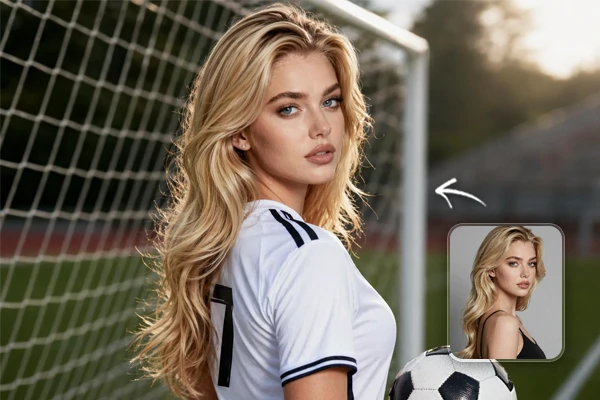
To replace face details in one portrait, select one subject in the source image and add a reference appearance. The result updates the selected person while keeping the clothing, pose, lighting, and composition of the original scene consistent.
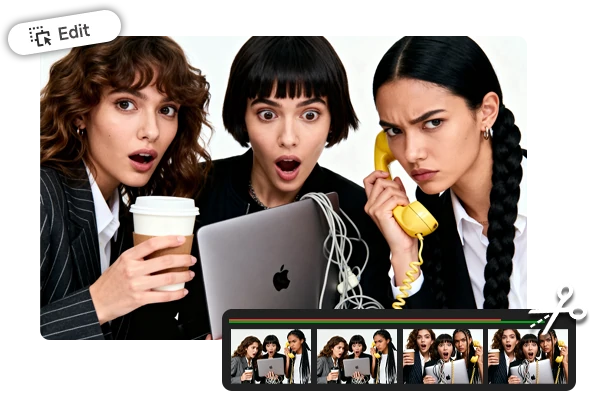
For group images, select only the people you want to update and add a reference appearance for each one. The rest of the scene can stay unchanged, helping event photos, cast concepts, and team visuals keep their original arrangement.
Add a reference appearance to a source video or gif, select the subject, and create a new version that follows the source motion. This keeps the timing and movement of the clip intact while updating the selected person's appearance.
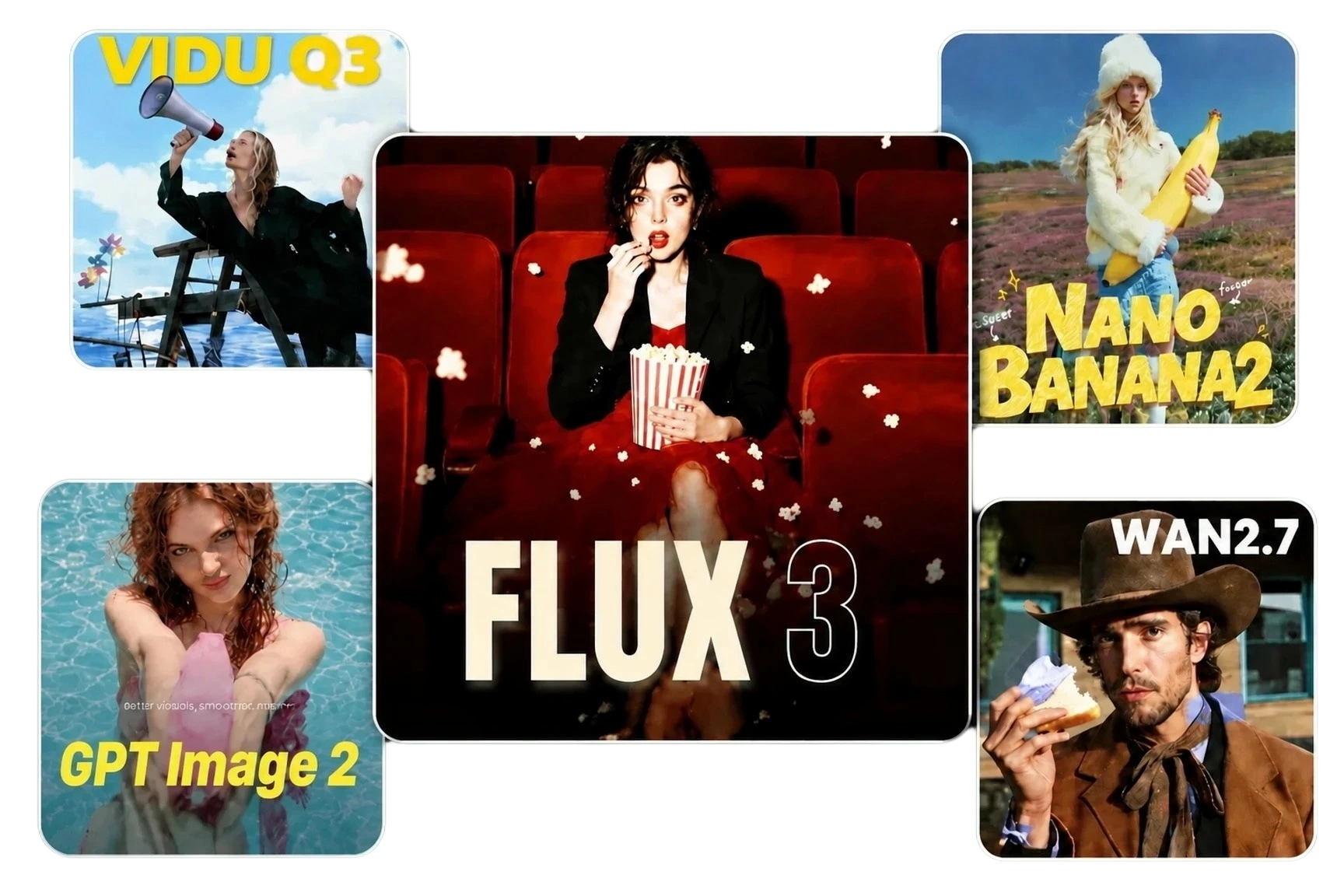
Create a clear reference image before reconstruction when you need a more specific visual direction. You can try FLUX 3 Image or GPT Image 2 to explore different portrait styles, then add the result you prefer as the reference appearance for your selected subject.
Add Original Media
Upload the image, gif, or video that provides the source scene and, for video, the source motion.
Pick a Reference
Choose a clear, well-lit reference image that shows the appearance you want to apply.
Select and Create
Select the subject, confirm the reference appearance, then create the reconstructed result.
Use a source, a reference, and a clear selection to build the version you need.

What is this tool designed to reconstruct?

Can I change face details in a group photo?
Yes. Select the people that need an update, use clear references that match the intended result, and keep the remaining people unselected to retain the original group arrangement.
What Are the File Limits for Reconstruction?
For image reconstruction, upload an original image and a reference appearance image, each up to 10 MB. You can choose single-object or multi-object reconstruction and preserve non-target areas. For video reconstruction, upload an original video up to 500 MB and 10 minutes long, plus a reference appearance image up to 10 MB; the source motion is retained in the result.
How should I prepare a reference image?
Use a clear, well-lit portrait where the person is easy to see. A reference with visible facial detail gives the reconstruction a more specific visual direction.
Can I use results in video ads?
Yes, a reconstructed clip can be prepared as a creative asset for video ads when you have the right to use the source and reference media. Review the final output before publishing so it matches the campaign context.