
No Data

Bring your ideas to life with GPT Image 2.5. Create lifelike visuals with natural lighting and rich textures, refine specific details, and maintain consistency across edits.
See what creators have made, from printed photo portraits and photo restoration to precision edits and room refreshes. Each example shows how a visual reference can become a clearer final direction.
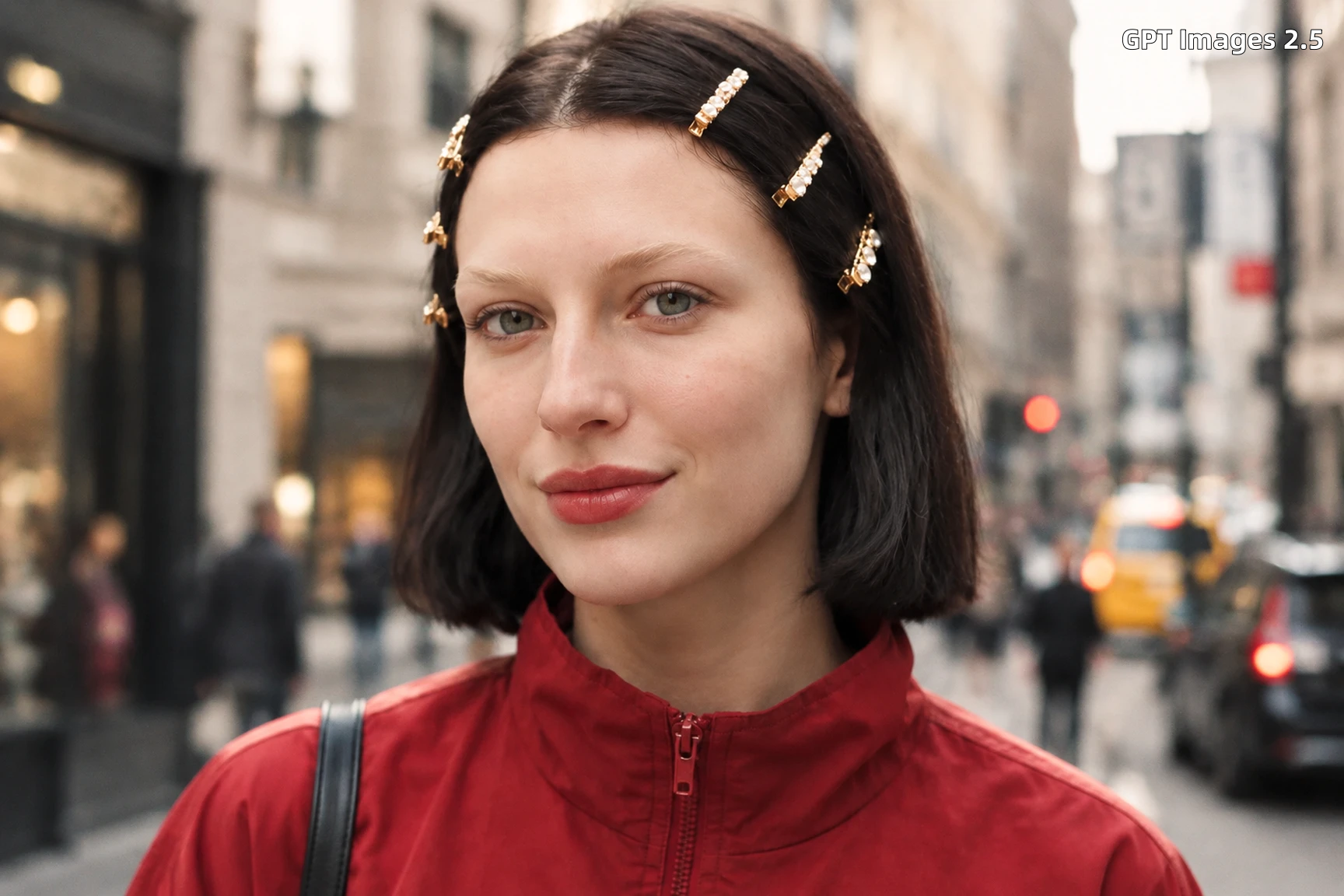 Printed Photo to Portrait
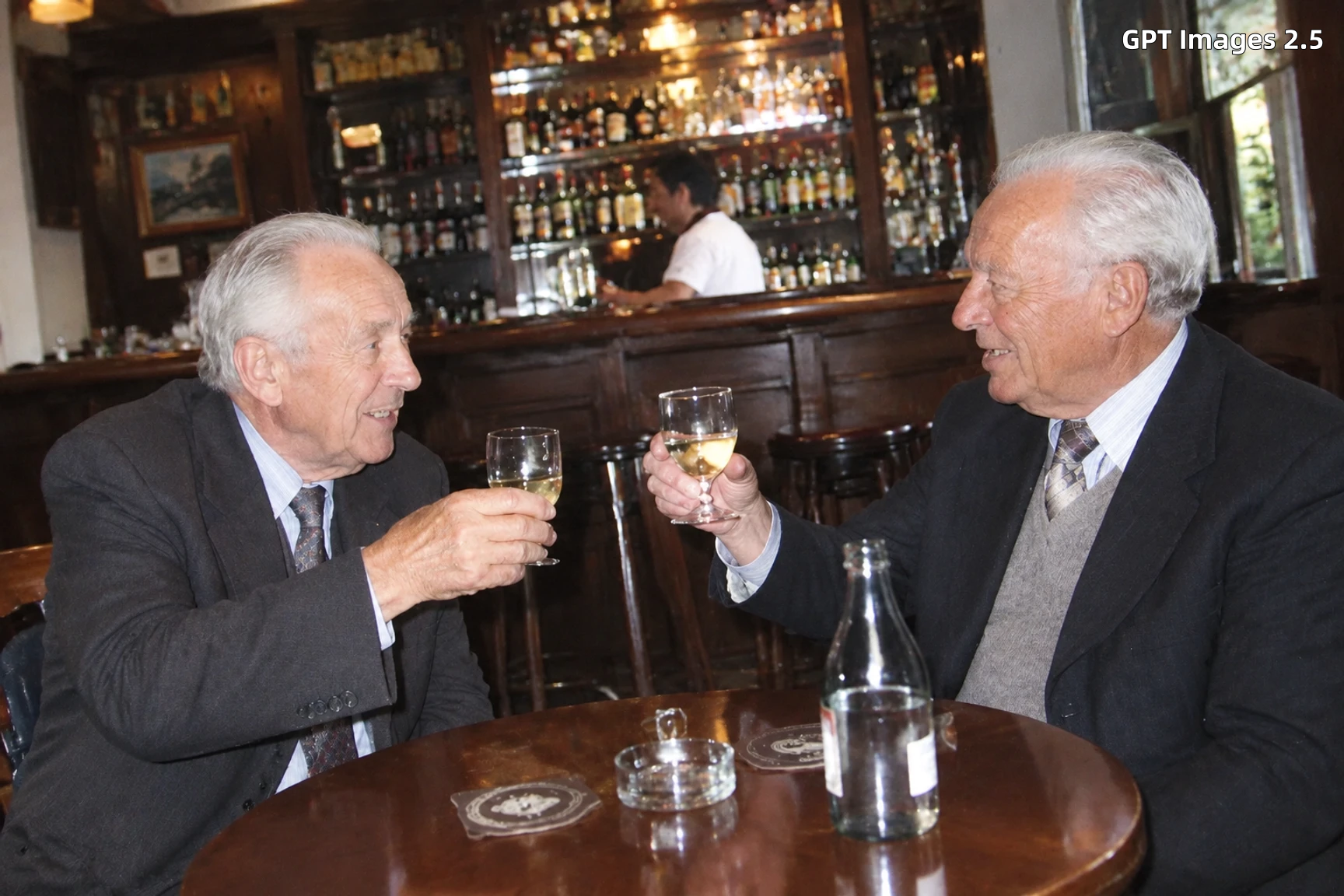 Photo Restoration
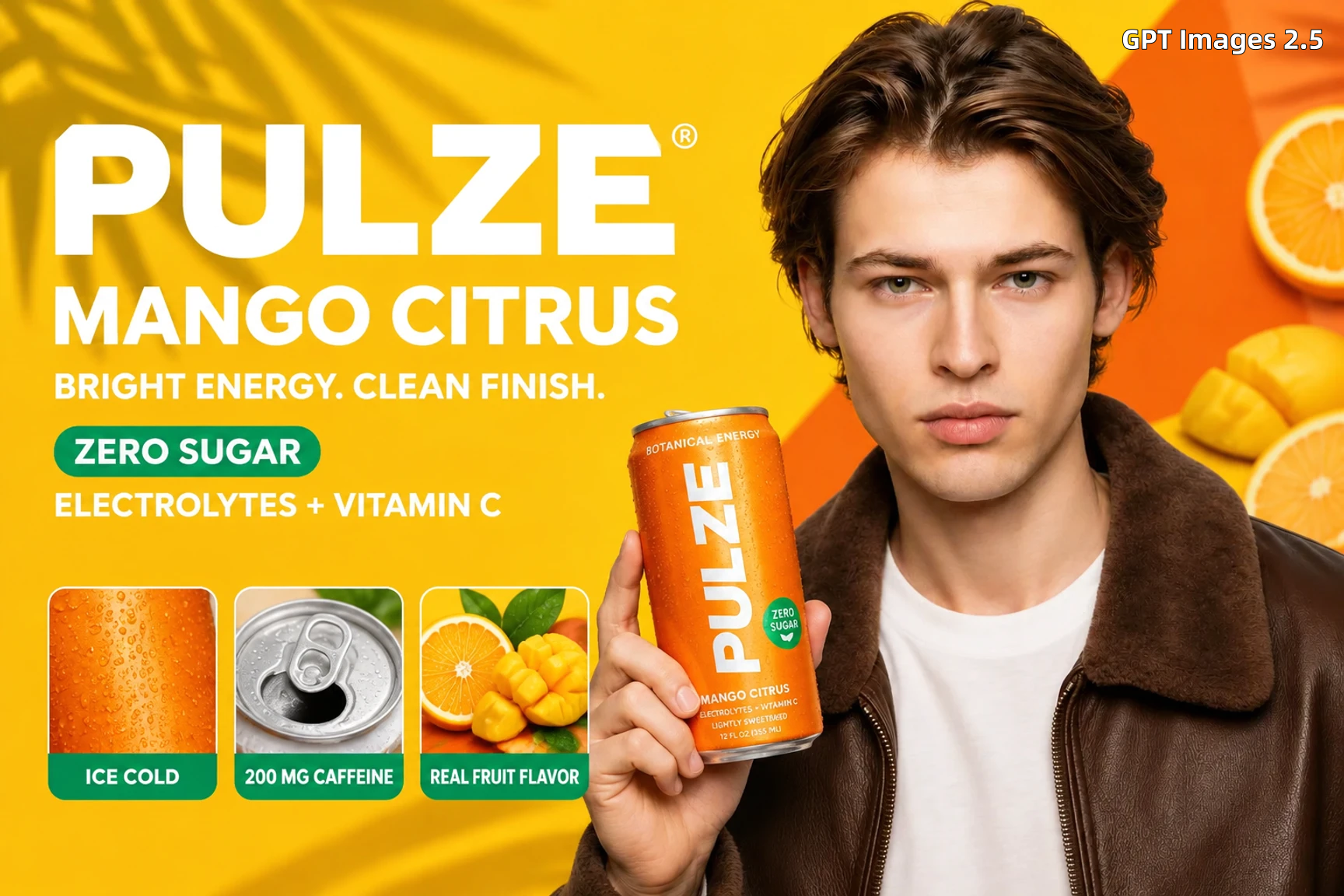 Precision Editing
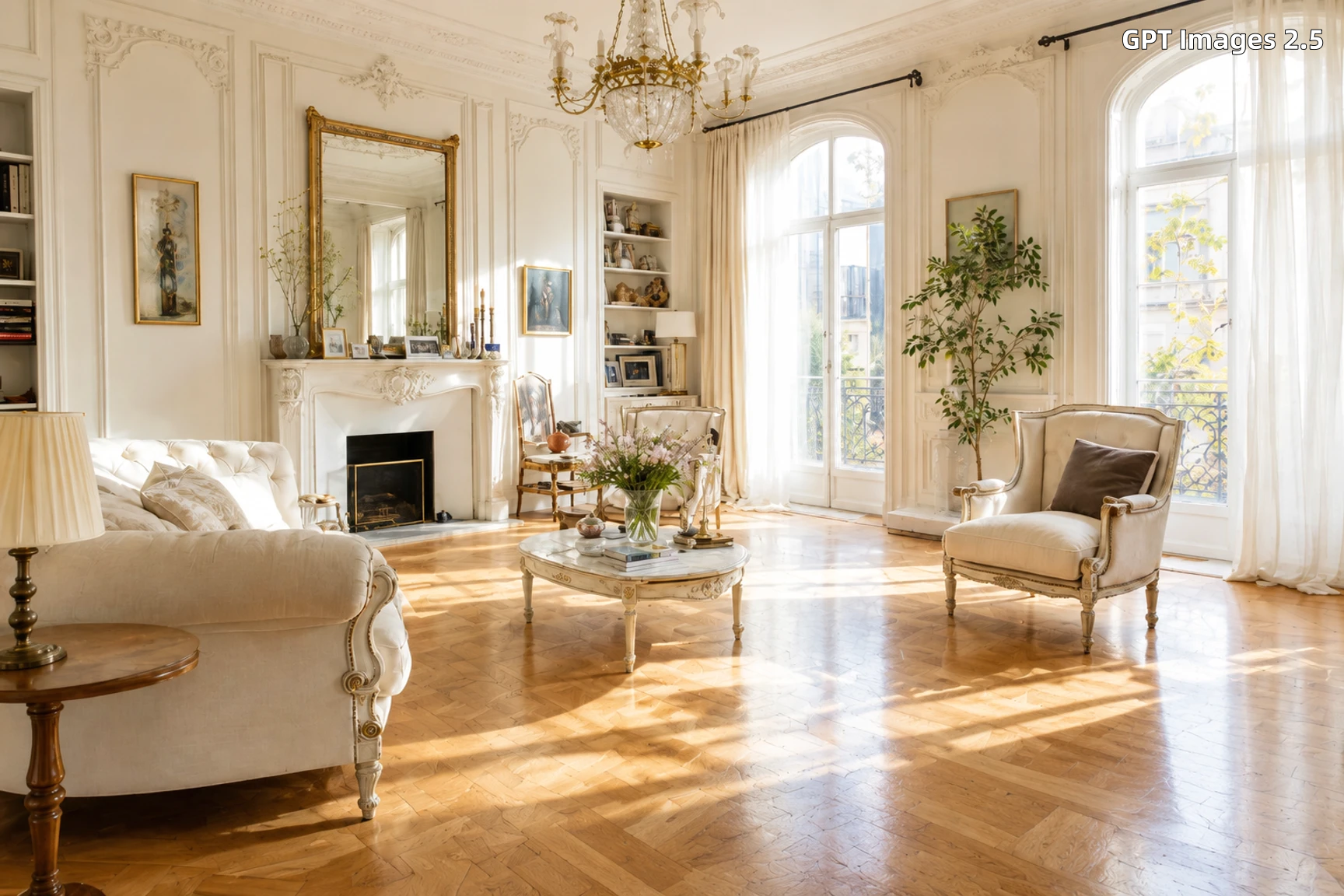 Room Refresh
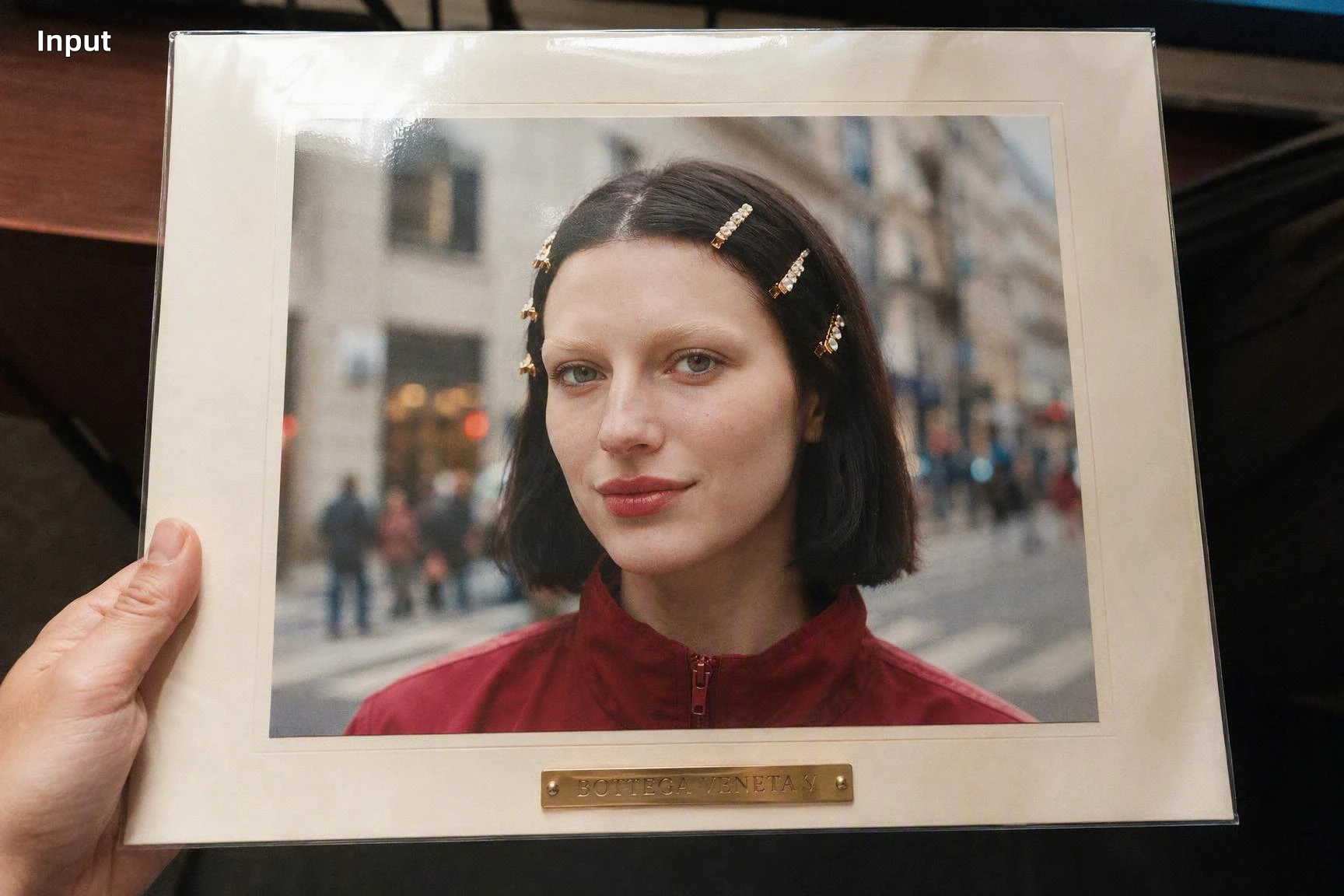
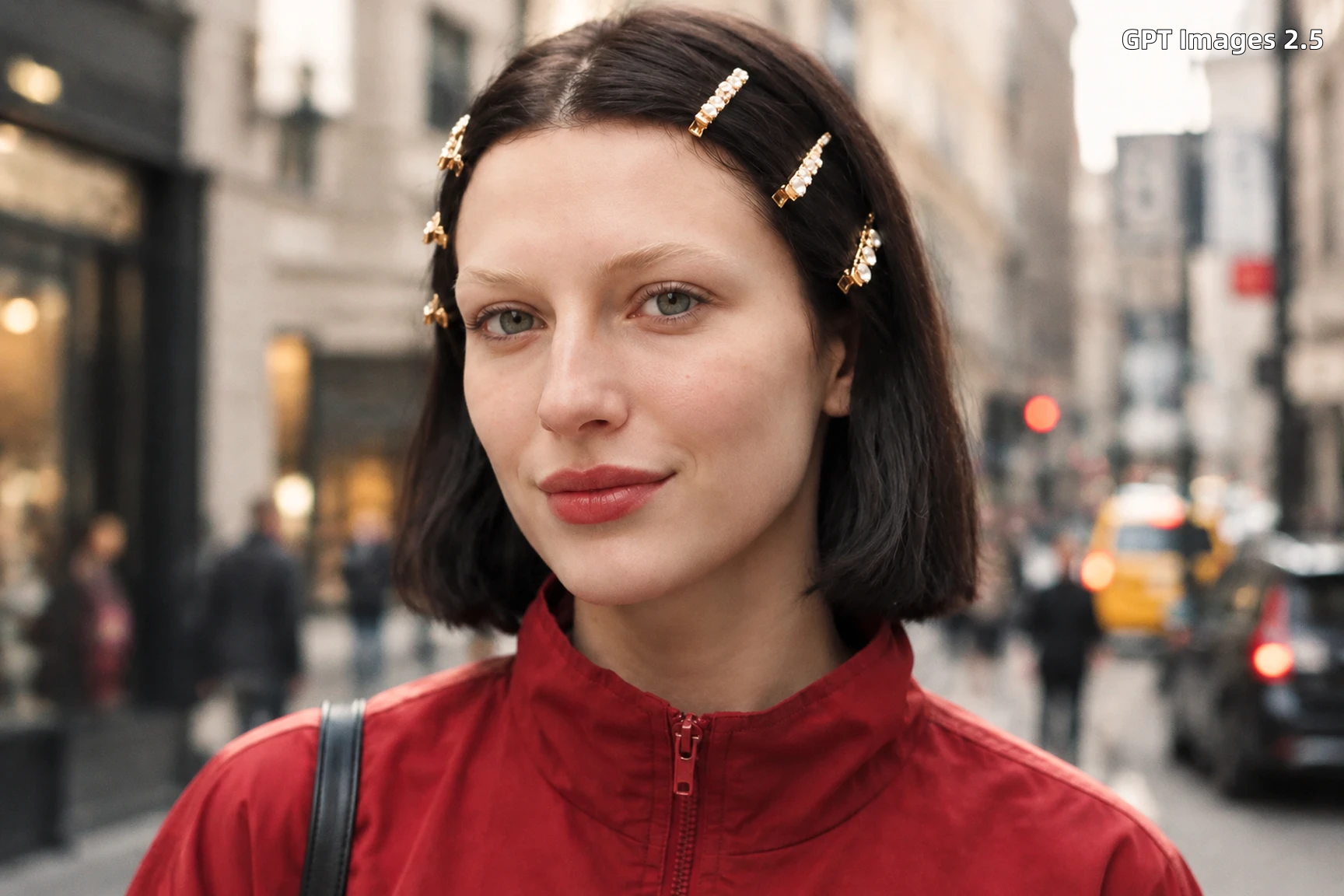

Sharper Details and Textures
Bring clearer edges, richer textures, and more natural lighting to portraits, products, and imagined scenes.

More Precise Image Editing
Make focused changes to subjects, backgrounds, and objects while keeping the surrounding image direction intact.

Consistent Multi-Turn Refinement
Build on earlier edits across several prompts while keeping the image's subject, style, and composition aligned.

Stronger Reference Fidelity
Use reference images to keep faces, products, and distinctive details recognizable across new scenes and styles.
This image generation workflow is built for prompts that carry more than a subject and a style. Describe the setting, camera view, materials, lighting, mood, and relationships between objects to guide a complete scene. It suits editorial portraits, cinematic frames, campaign concepts, and visual storyboards where composition matters. Start in the AI image generator, then refine one visual decision at a time so the result stays focused instead of becoming a collection of disconnected details.
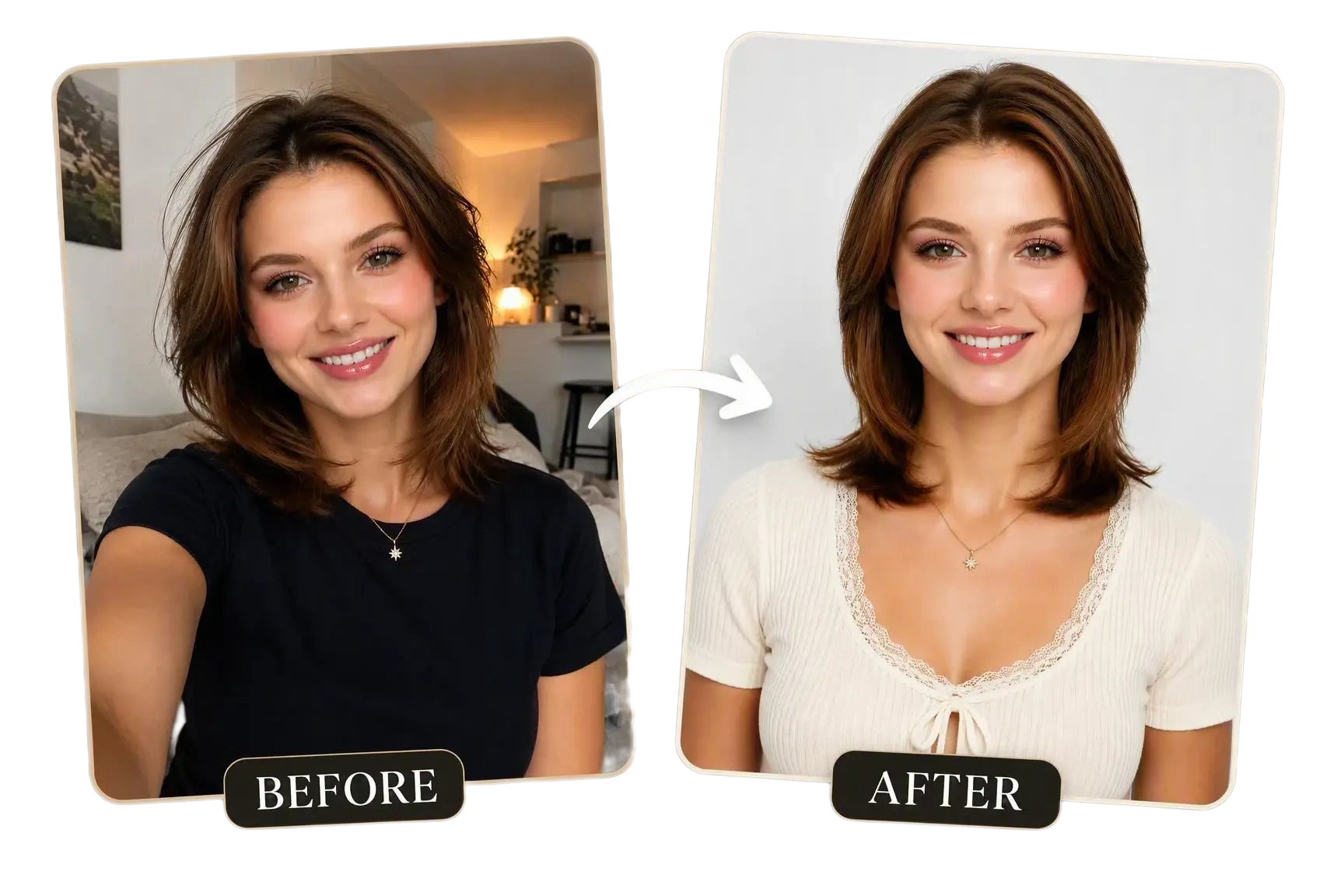
Bring a reference image into the creative process when a face, product shape, outfit, or visual direction needs to remain recognizable. For portrait-focused work, continue with the AI portrait. Use the reference to anchor the new composition, then describe the changes you want in the prompt. Review the edited result against the original before preparing a final asset.
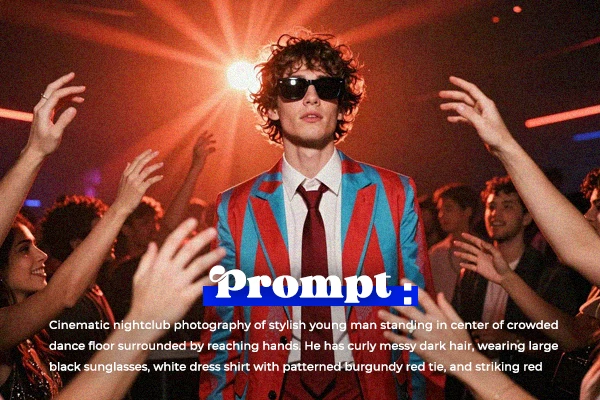
Plan images that include several people, objects, labels, and layers in one frame. This image model can help translate a visual brief into a structured composition, making it useful for event posters, product scenes, magazine-style layouts, and imaginative environments. State the position and role of each important element, then review the hierarchy in the first result. Keep the visual hierarchy clear when several subjects share the same frame.
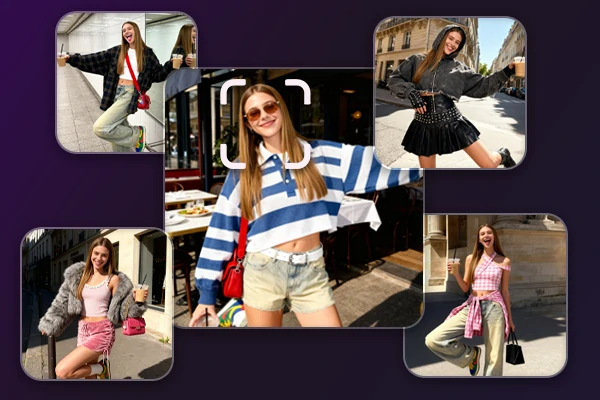
Use the image model for the first pass of a creative project, from social artwork and product concepts to story scenes and presentation visuals. A single prompt can establish the visual direction, while later prompts can adjust the crop, palette, subject styling, or surrounding context. This makes the model practical for creators who need to compare several directions before choosing one. Finish detail work in a focused editing workflow when the image needs cleanup, enlargement, or export preparation.
Write the Prompt
Describe the subject, setting, composition, style, lighting, and important details you want to see.
Add a Reference
Upload a reference image when a face, product, outfit, or visual direction should guide the result.
Refine Your Image
Review the image, adjust one detail at a time, and regenerate until the composition matches your working brief.
Switch freely between 700K+ AI image generation models on SeaArt AI, including Checkpoint, LoRA, Flux, Pony, and more.

Which input should I start with: a prompt, a reference image, or both?

Can I keep the same person or product while changing the scene?
Use a reference image and describe exactly what should change, such as the background, outfit, camera angle, or lighting. Small details of the main subject may still shift, so inspect the result before using it in a final design.
What should I change when the first result is close but still wrong?
Keep the useful parts of the prompt and name one correction at a time, such as moving the can label forward or restoring a face detail. Rewriting the whole brief often makes it harder to tell which instruction helped.
Are images with posters, labels, or packaging text ready to publish?
They work well for layout ideas and short copy, but small words and dense labels still need a careful check. Treat the result as a draft when the wording carries legal, pricing, or brand information.
Is this a good fit for old-photo restoration or product edits?
Yes, it can help refresh a faded photo or reshape a product scene while keeping the requested subject in focus. For archival work or exact packaging details, compare the before and after, then review the result manually.